

Understanding Your Accessibility Score
Introduction
Scan results tell you what’s wrong on your site, but not always how you’re doing overall.
Your Accessibility Score turns your results into a single number and letter grade, so you can see where you stand at a glance and know exactly what’s holding your grade back.
What Your Score Means
Every site gets a score from 0-100 and a letter grade from A+ to D:
- A+ – 97-100
- A – 93-96
- A- – 90-92
- B+ – 86-89
- B – 79-85
- B- – 72-78
- C+ – 66-71
- C – 60-65
- C- – 54-59
- D – 45-53
Even the roughest site still lands on a D, not an F. There’s always a next fix that moves you up a band.
How Your Score Is Calculated
Your score starts from your site’s confirmed accessibility issues, weighted by how much each one affects real users. A Critical issue pulls your score down more than a minor one.
Repeated instances of the same issue count with diminishing weight: the first one counts most, and each additional instance of that same problem adds less. A page with 200 instances of one issue isn’t scored as 200 separate problems.
Only confirmed issues count against the number. Issues still waiting on manual review don’t lower your score, but they do hold your grade’s ceiling down until you review them, so clearing that queue is worth doing.
The results of automated PDF scans factor in too, and can only pull the number down by a few points at most.
Your score reflects issues found by AAArdvark’s current scan engine. Each site runs one engine, shown as the Checker on the Site Dashboard: IBM Accessibility Checker, aXe Runner, or HTML Code Sniffer.
Your Grade Ceiling
Automated scans alone can only take a site up to a B. To reach B+ or higher, you’ll need to:
- Complete manual testing on a sample of your pages. The number of pages required scales with your site’s size: smaller sites test a larger share of their pages, and larger sites only need a representative sample, capped so it never becomes an unreasonable amount of work.
- Clear any open Critical issues.
- Review the queue of items the scanner flagged as needing manual review. The ceiling lifts gradually as you work through it, not all at once.
Where You’ll See Your Score
Once a site has been scanned, its grade turns up in a few places. The Dashboard Overview walks through each of these screens in full.
Workspace Dashboard
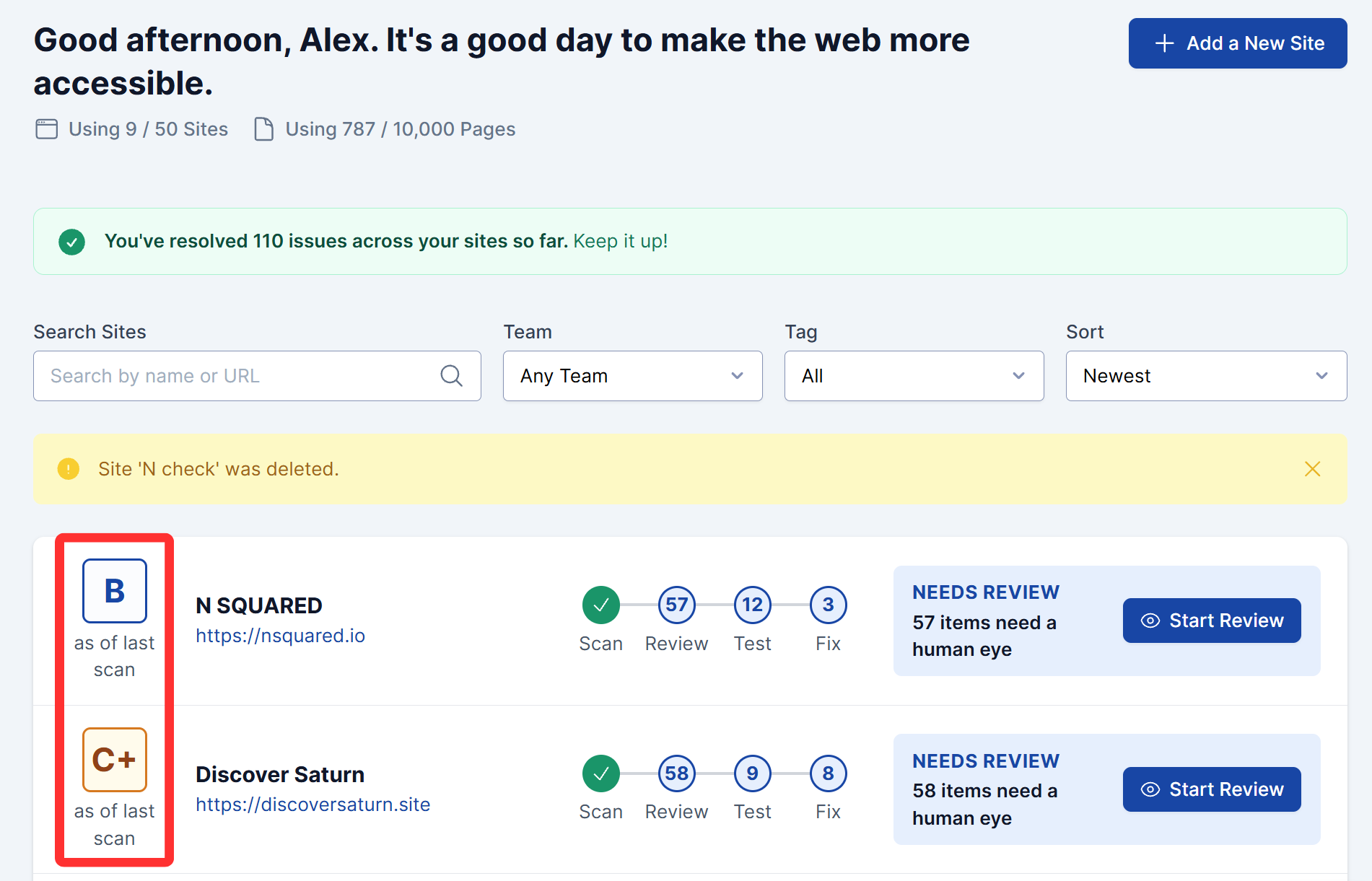
Every site row leads with its letter grade, labeled “as of last scan” (or “no grade yet” before the first scan).
Site Dashboard
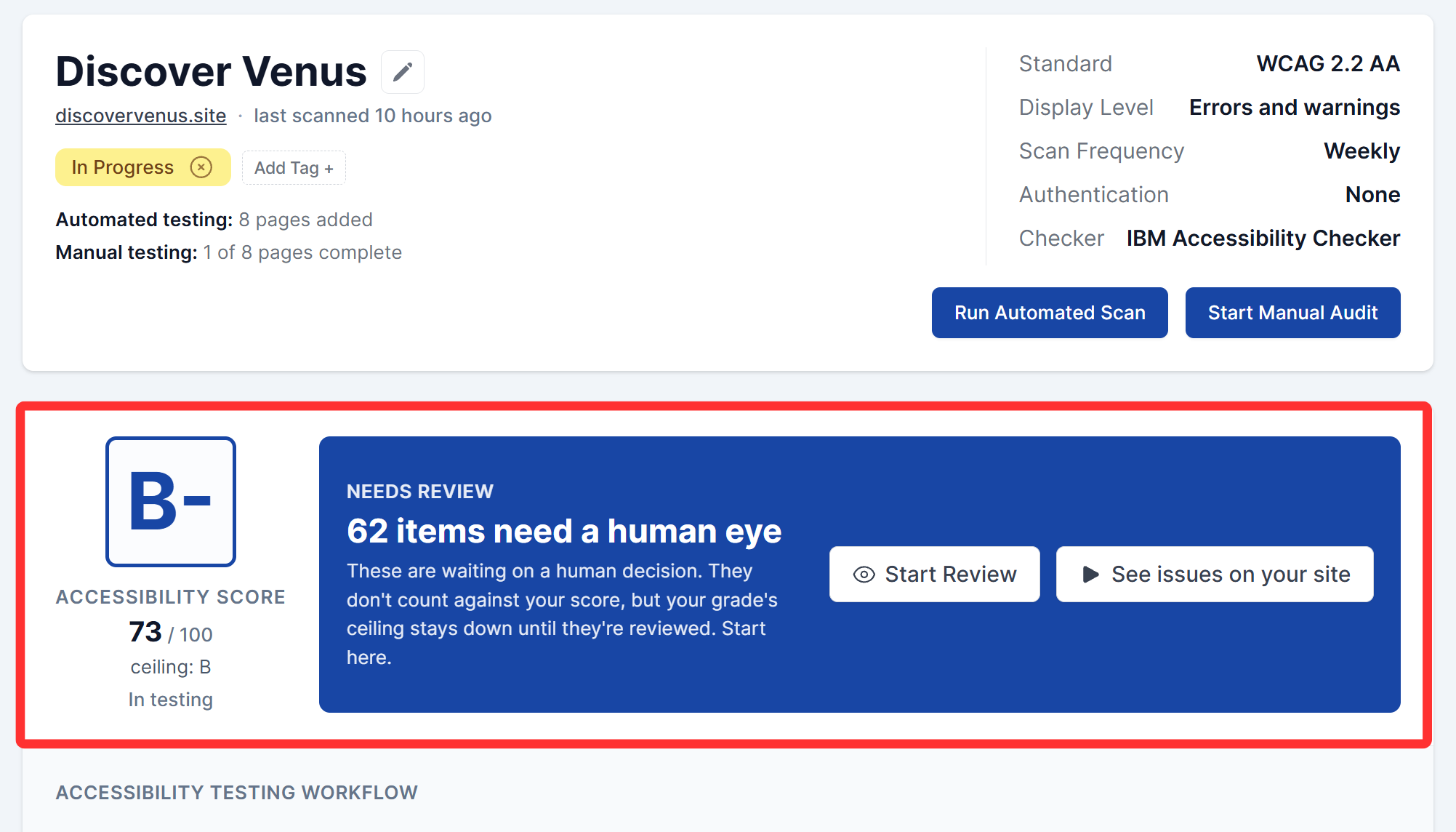
The Accessibility Score panel shows the 0-100 number, the letter grade, your current ceiling (“ceiling: B”), a coverage label (Automated only, In testing, or Manually tested), and a “this quarter” change once the site has about 90 days of scan history.
Trend Report
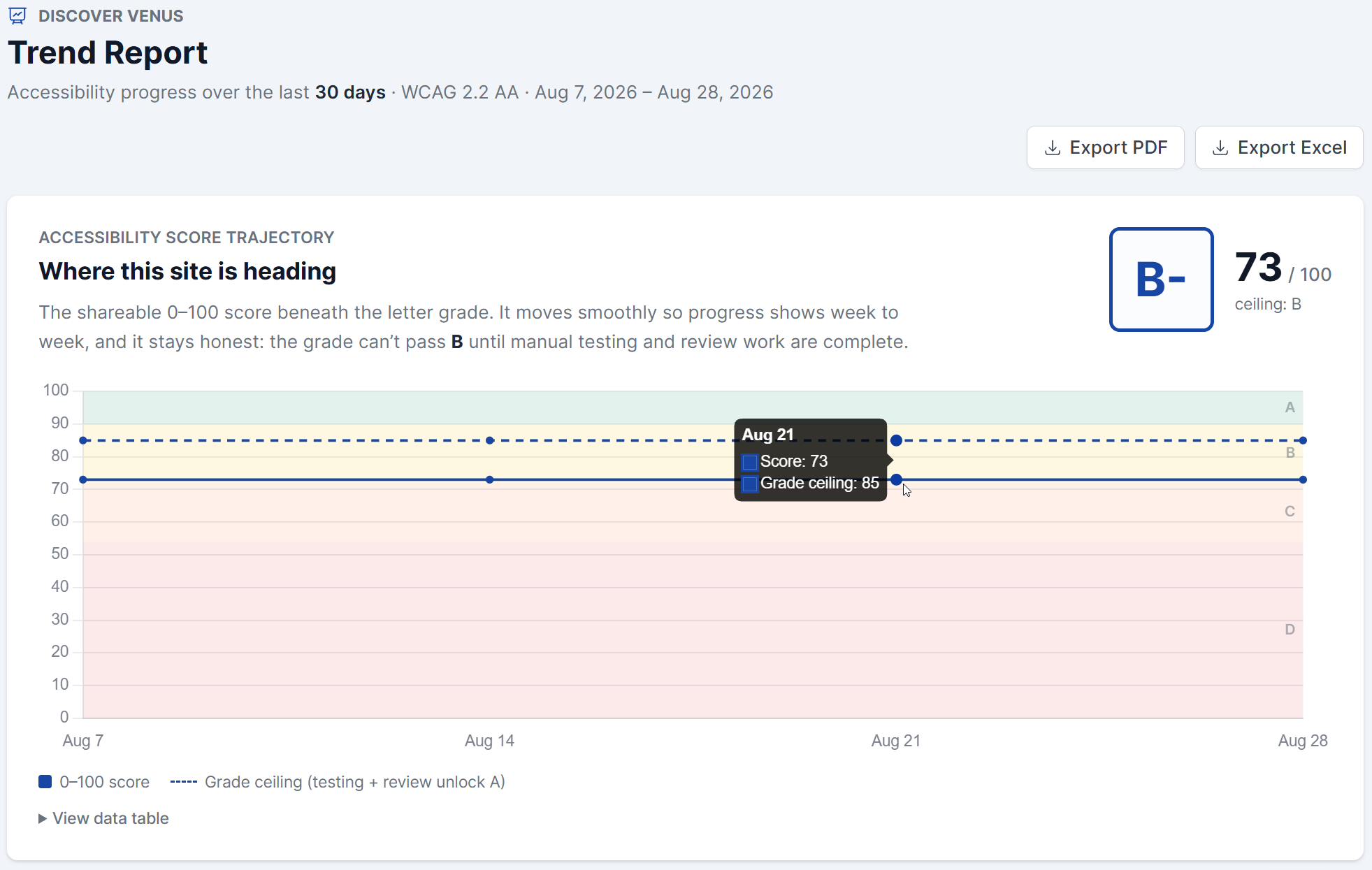
A per-site screen tracking your score over time, opened from the View Trend Report link on your Site Dashboard. It starts with the last 30 days; the 90-day and 12-month views open up as more scan history builds. See the Trend Report guide.
PDF report
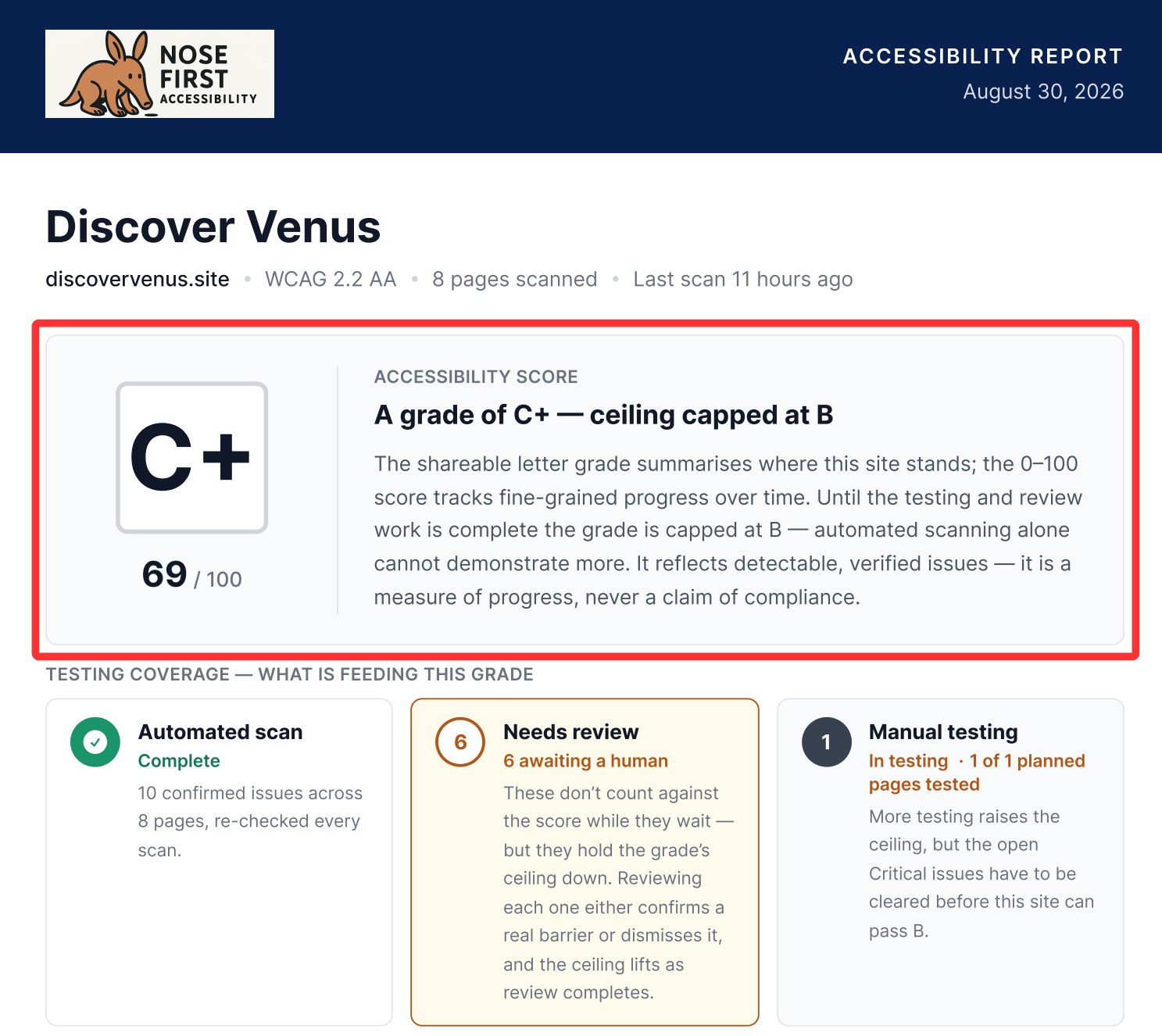
The exported PDF report carries a grade card (letter, 0-100, ceiling), a “how your grade is calculated” breakdown, and a progress-over-time page once the site has enough scan history.
What Your Score Reflects
Your Accessibility Score is a measure of progress, not a compliance certification. It reflects the issues AAArdvark’s scan engine can detect and verify automatically, plus what you’ve confirmed through manual review and testing.
A high score means you’re on top of the issues AAArdvark can find. It isn’t a guarantee that your site meets a particular accessibility standard, and it isn’t a substitute for the manual testing and real-user evaluation that full accessibility requires. Use your score to track progress and spot what to work on next, not as a certification that your site is accessible.