Manual Testing Workflow
Introduction
Accessibility audits help ensure all users can access a site’s content and functionality. Automated testing only finds about 20–30% of issues, so manual testing is essential for WCAG compliance.
Automated scans catch obvious code-level problems, but context-specific issues often require manual testing, such as:
- Keyboard navigation
- Screen reader compatibility
- Meaningful alt text
- Clear visual focus indicators
Together, automated and manual testing provide a complete picture of the site’s accessibility status.
Performing a Manual Audit
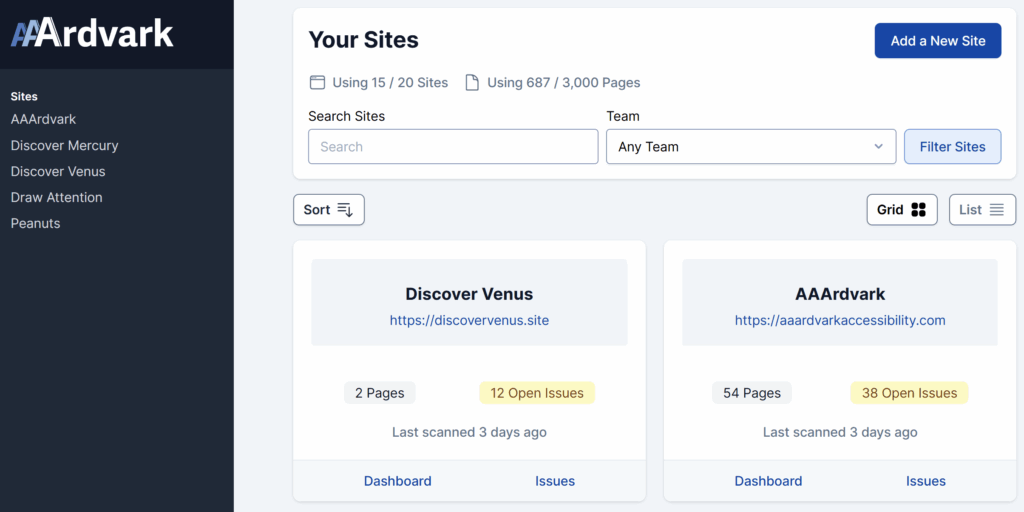
Start a manual audit in AAArdvark by opening the site in the Workspace dashboard.
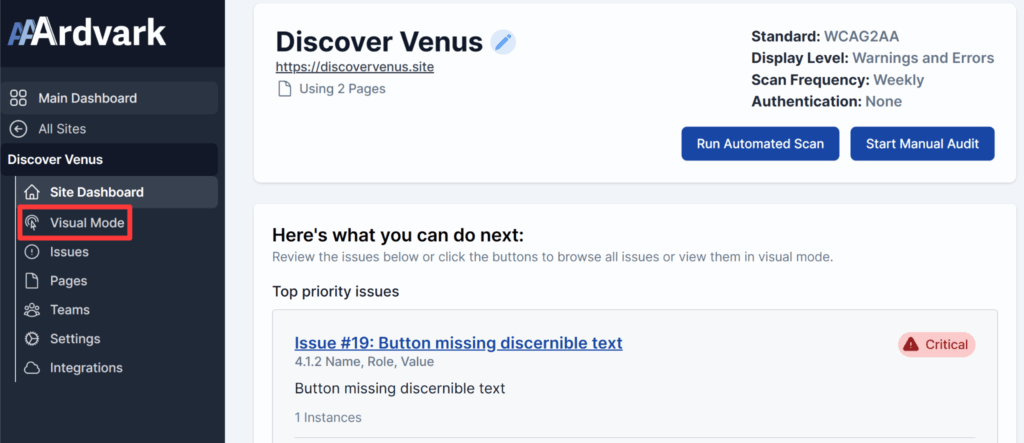
From the Site Dashboard, use Visual Mode to log manual issues after setup, including adding pages and initial scans, is complete.
Learn more about using Visual Mode.
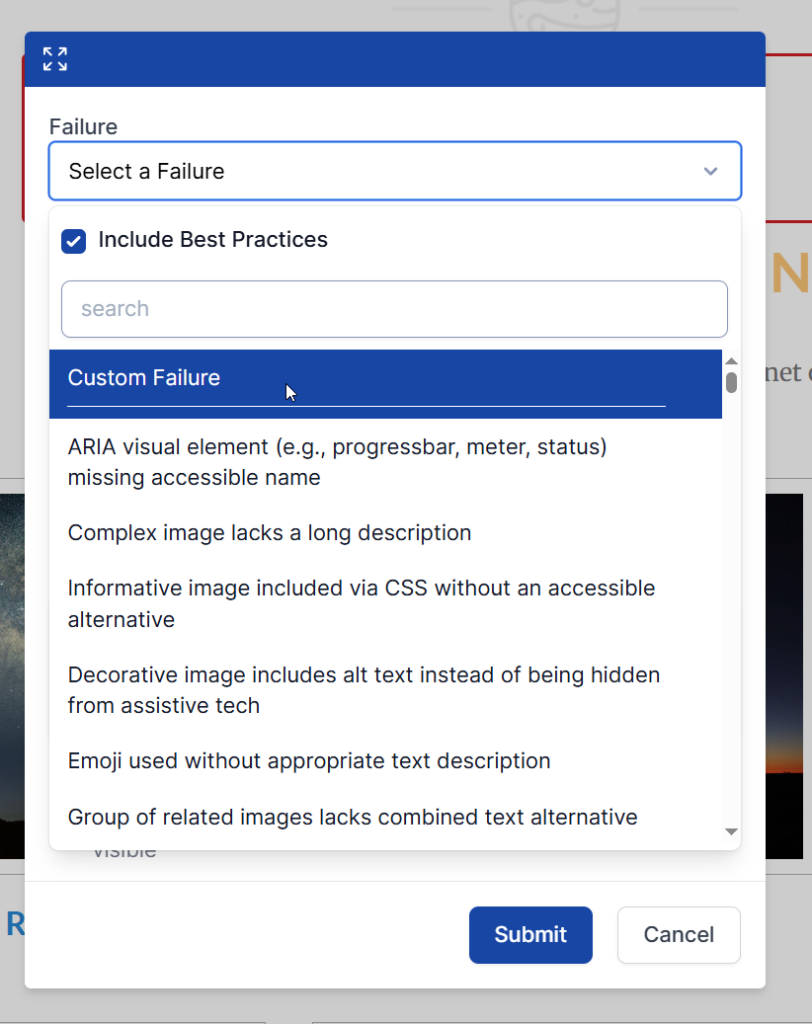
In Visual Mode, Accessibility Testers can:
- Record issues for Developers to address
- Select from a pre-set list of failures, already mapped to Severity, WCAG Success Criteria, and possible Solutions.
- Create a Custom Failure by choosing “Custom Failure” in the dropdown
Visual Mode requires the AAArdvark browser extension. Install it for Chrome, Edge, or Firefox before getting started.
The Pages tab lists all pages needing review. Testers can click a page title to open it in Visual Mode or in a new tab and begin testing.

Tracking Audit Progress
Page Status
Each page on the Pages screen has a Manual Testing Status to help you track where you are in the audit. There are four status values:
- Not Started – the page hasn’t been reviewed yet (the default for all pages)
- In Progress – testing is underway on this page
- Tested – the page has been manually reviewed
- Skipped – the page was intentionally set aside for this audit
To update a page’s status, click the status indicator next to the page name and choose from the dropdown.
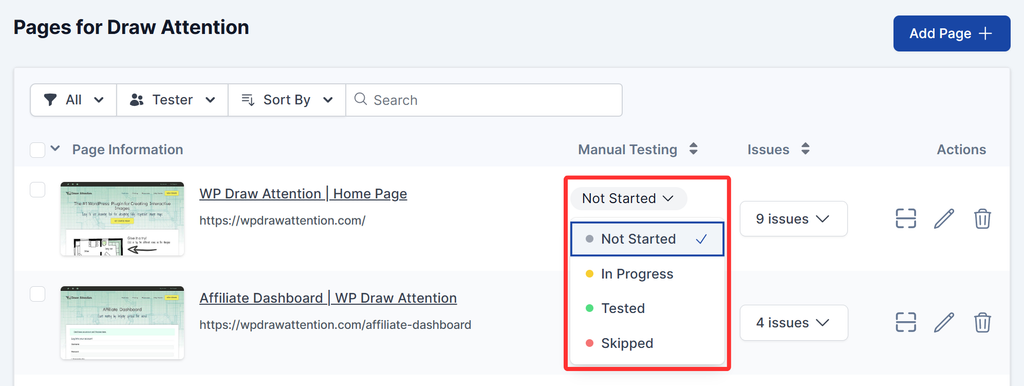
Bulk updating: Select multiple pages using the checkboxes, then use the bulk action bar at the top to apply a status to all selected pages at once.
Filtering by status: Use the status filter on the Pages screen to show only pages at a specific stage – for example, filter for Not Started pages to see what’s left to cover.
Permissions: Owners, Administrators, Project Managers, and Accessibility Testers can set and change page status. Developers and Clients see the current status as a read-only badge.
Assigning Testers
If more than one person is doing the manual testing, you can assign a specific team member to each page directly from the Pages screen to divide up the work. Each page row has a tester field – click it to choose who’s responsible for manually testing that page. This doesn’t change anyone’s role or permissions – it’s just a way to track who owns manual testing for that page.
The tester dropdown only lists team members whose role can be assigned to issues – Developers and Clients don’t appear as options.
To assign a tester to multiple pages at once, select them using the checkboxes and use the bulk action bar.
The Tester button in the Pages toolbar lets you filter by assigned team member, showing a page count per person – useful for distributing work or checking coverage at a glance.
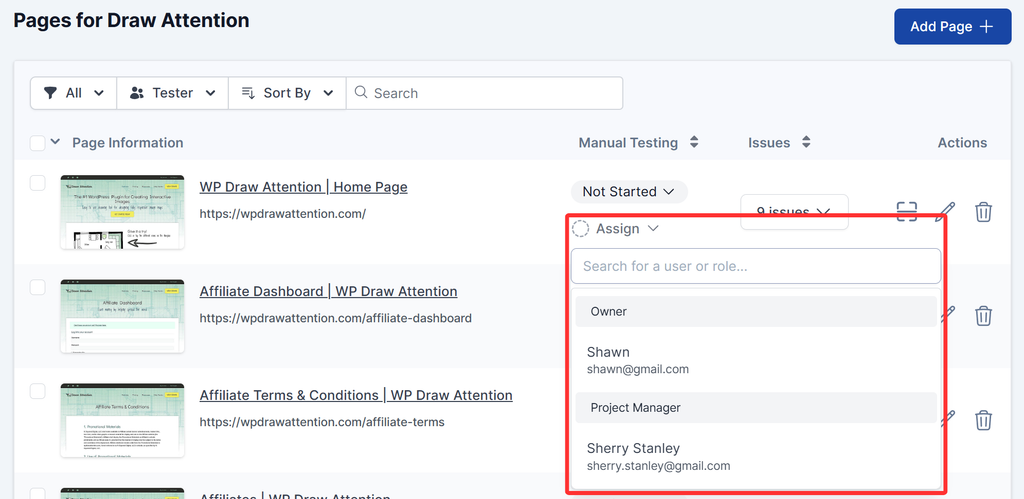
Permissions: Owners, Administrators, Project Managers, and Accessibility Testers can assign testers to pages. Developers and Clients cannot. See Team Settings for what each role can do.
Reviewing Fixes for Manual Issues
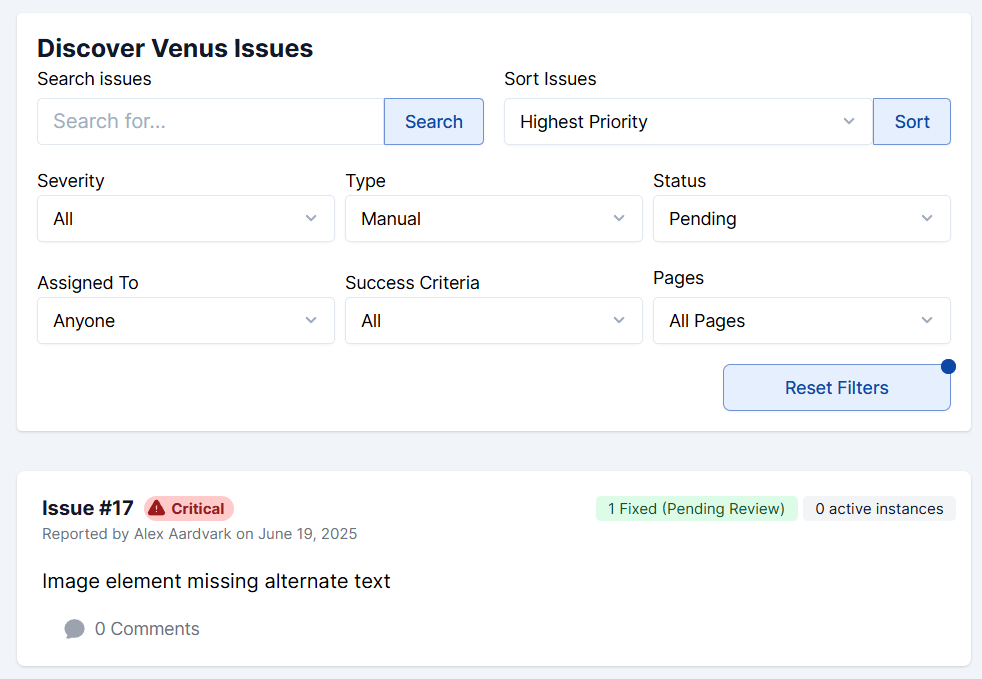
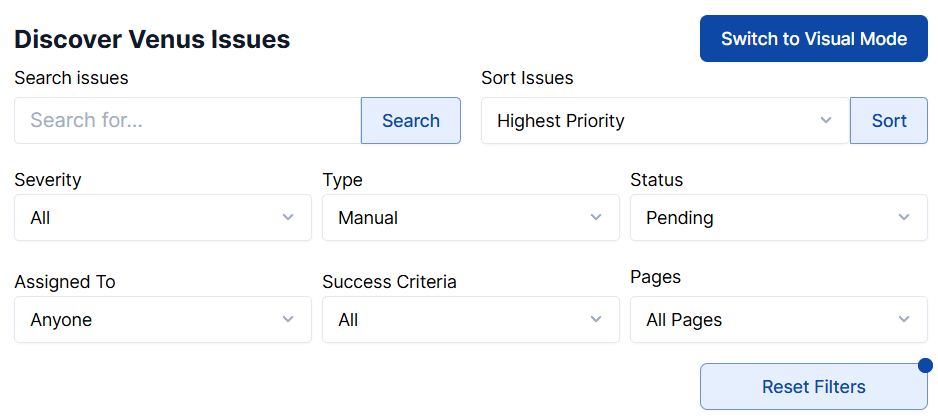
In addition to recording manual issues, testers and developers can also head to the Issues list to go over manual issues that require review. Filtering the issues by:
- Type: Manual
- Status: Pending Review
If a fix meets WCAG standards, the Tester can mark the issue as Resolved.
AAArdvark Features for Manual Testing
AAArdvark readily provides features to streamline the manual testing process with some key capabilities for accessibility testing and remediation.
Accessibility Tester Role
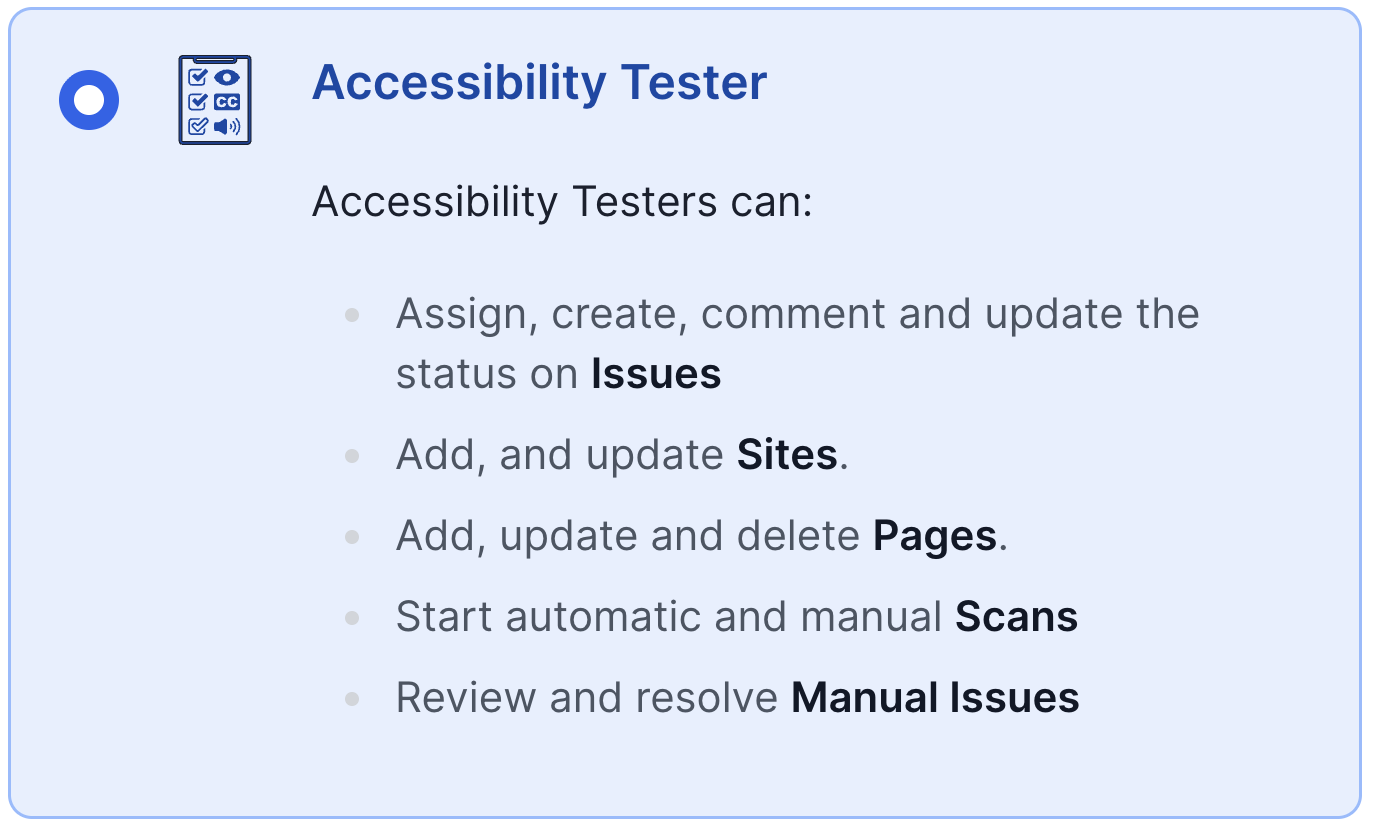
Assigning this role gives users the ability to record issues, update status, assign issues, run scans, and resolve manual issues. Accessibility Testers also get notifications when developers mark an issue as fixed and can confirm the resolution.
Accessibility Testers can:
- Assign, create, comment and update the status on Issues
- Add, and update Sites.
- Add, update and delete Pages.
- Start automatic and manual Scans
- Review and resolve Manual Issues
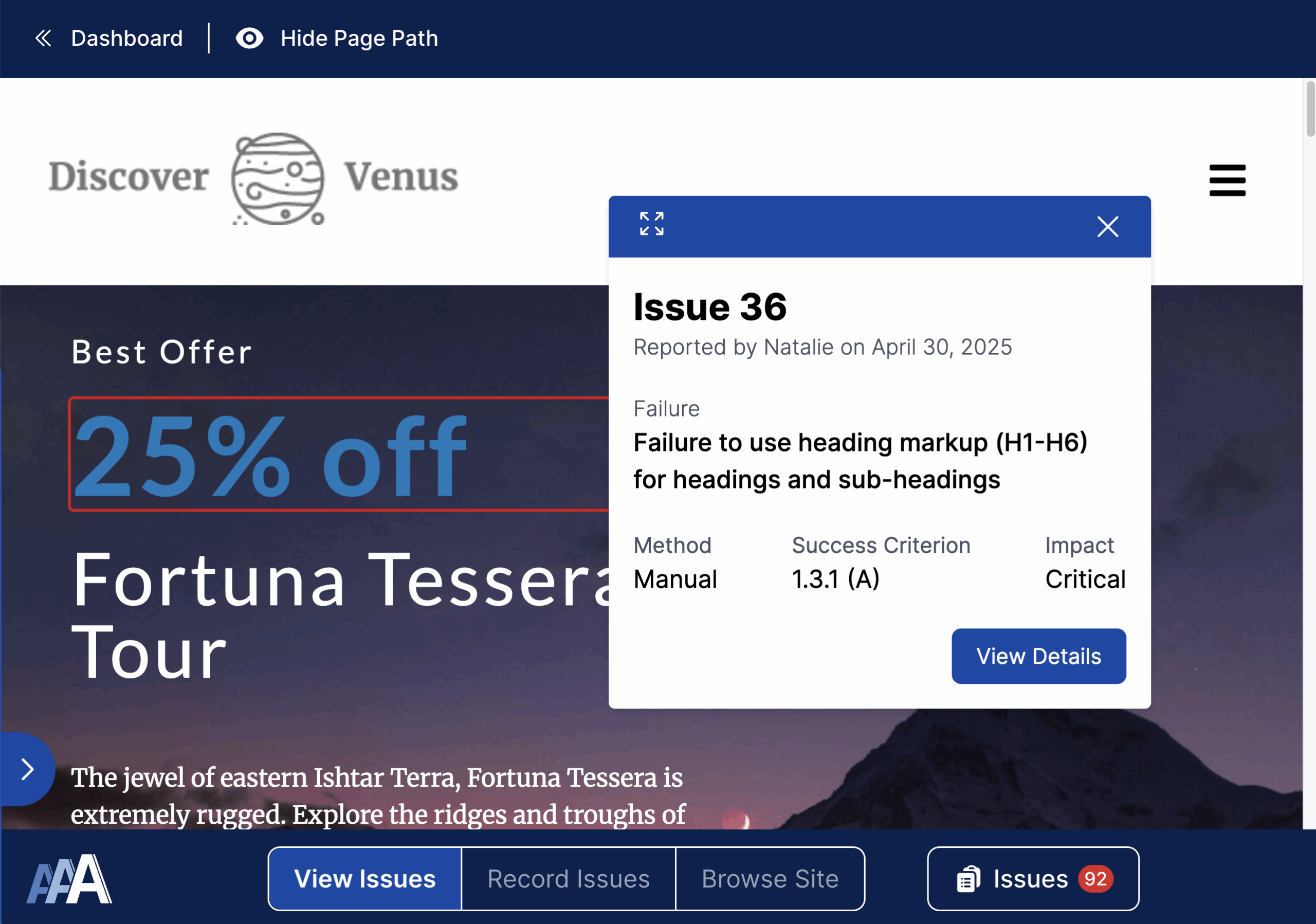
Creating Manual Issues via Visual Mode
Visual Mode simplifies spotting and documenting issues without spreadsheets or scattered notes. Built-in failures are mapped to solutions and resources, and pinpoint markers show exactly where the issue occurs.
Reviewing Manual Issues and Addressing Them
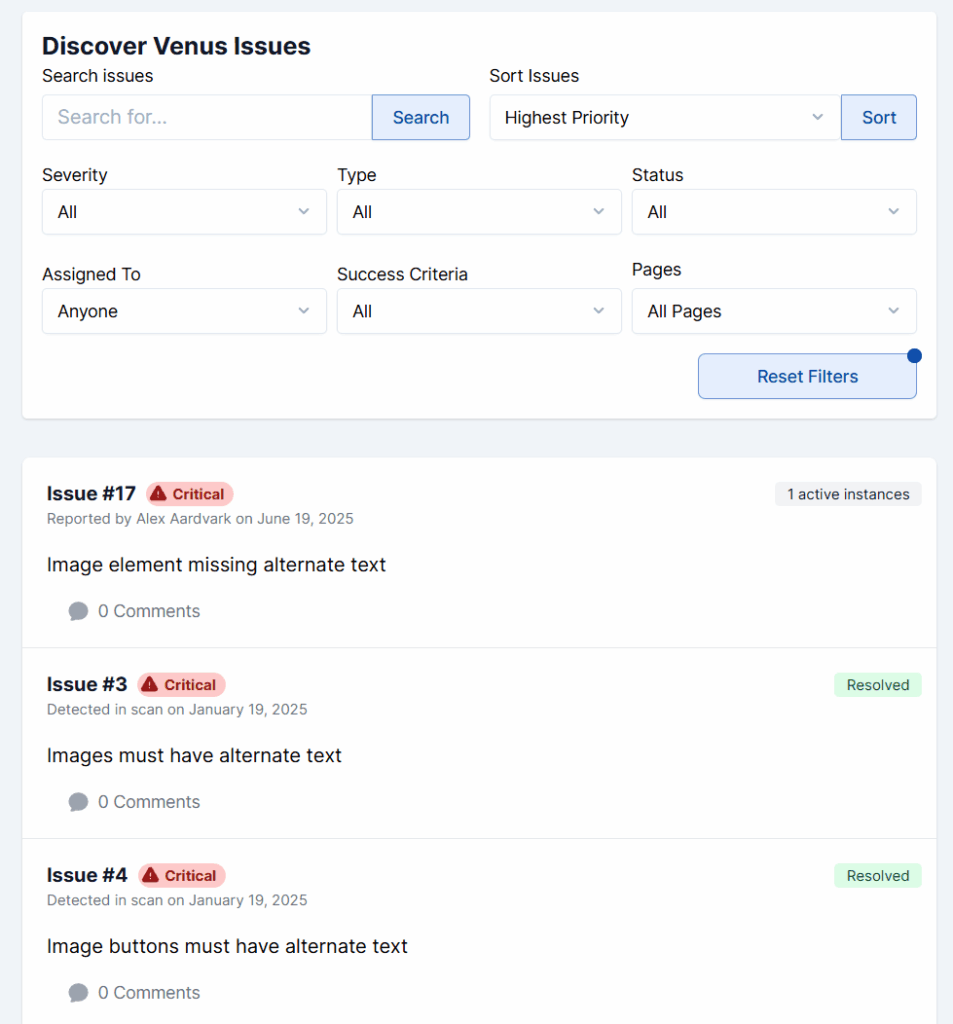
Once manual issues are recorded, they will appear in the Issues list alongside automated issues.
After a Developer addresses an issue, flag it as Pending Review. Accessibility Testers verify fixes, then mark the issue as Resolved.
Filters for Issues
Filters let Testers and Developers sort by priority, severity, type, status, assignment, success criteria, or page.
For manual reviews, filter by:
- Type: Manual
- Status: Pending Review
This makes it easy to track progress and confirm when issues are resolved.